同步區塊
Notion 允許您在頁面或工作空間中同步內容。這意味著可以重複使用更多內容,並減少手動編輯 🔄
跳至常見問題透過同步區塊,您可以在頁面或工作空間的多個位置使用相同的區塊及其內容。例如,您可以在入職文件及下次團隊同步會議的會議記錄中使用團隊的使命宣言。如果未來使命宣言有所調整,您只需在一處編輯,所有同步位置將自動更新!
若要在頁面之間、同一頁面的多個位置或工作空間之間同步區塊:
使用游標拖曳以選取區塊。
點擊所選區塊旁邊的
⋮⋮。選擇轉換成→同步區塊。選擇副本圖示,然後將區塊貼上到您想要的任何位置。

Note: If a user doesn't have access to the page containing the original block, they won’t be able to see a synced block's contents and can request access to that page. Make sure to give the right users permission in advance to see the original block.
如果您在同步區塊的其中一個實例中進行了變更,該變更也會出現在同步區塊存在的所有其他位置。
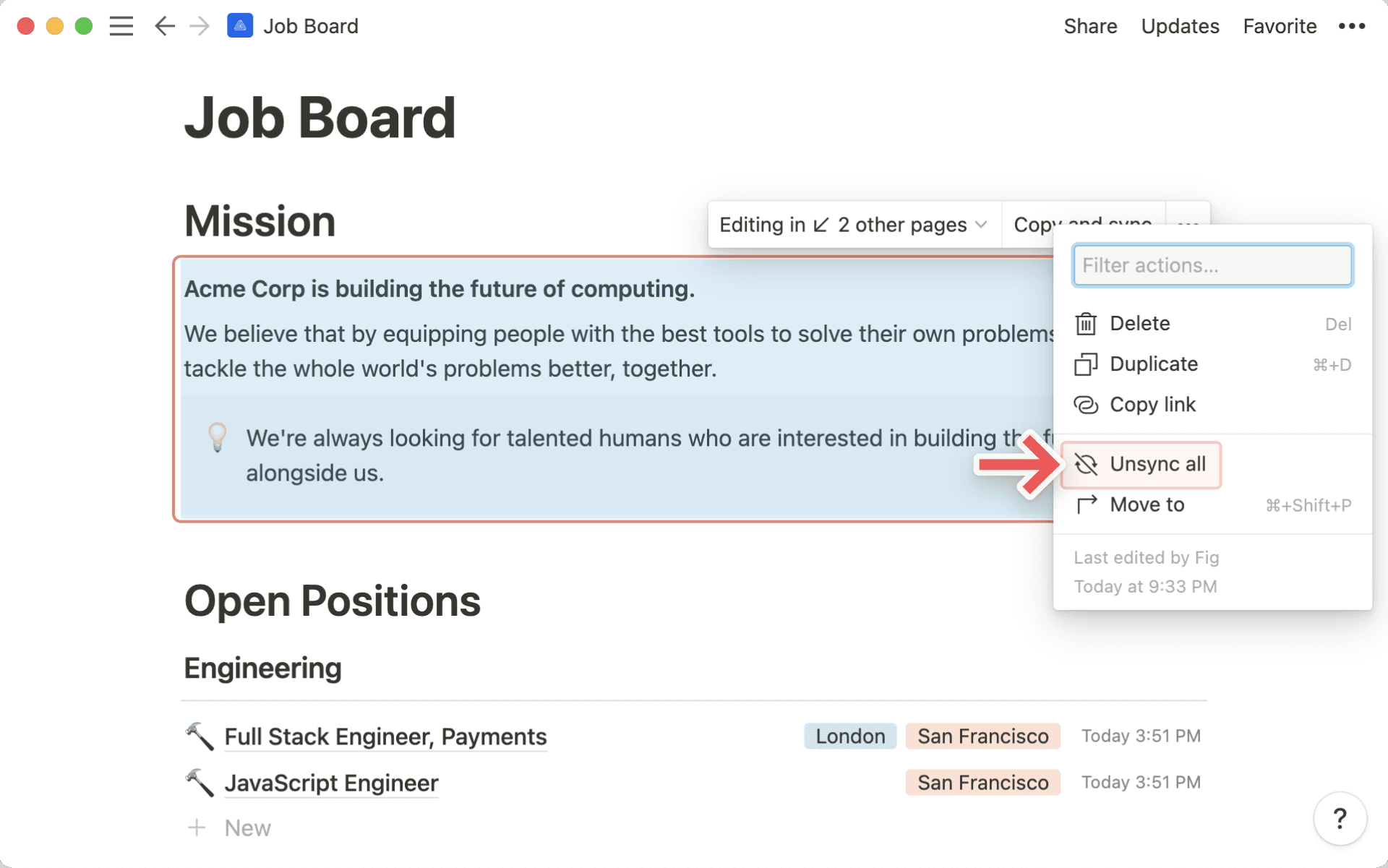
當您編輯同步區塊時,您會看到區塊周圍出現邊框,提示您這是一個在多個頁面或工作空間間同步的區塊。
您也會在同步區塊的頂端看到以下內容:
正在編輯 ↙ # 個其他頁面,這讓您可以查看該同步區塊還存在於哪些地方,並導覽至這些頁面。您會在建立同步區塊的頁面名稱旁邊看到
原始。
一個副本圖示,您可以點擊它來複製同步區塊並將其貼上到其他地方。
取消同步區塊會中斷它與其他副本之間的連接。取消同步後,每個區塊都會變得獨立,因此您所做的編輯將不會影響其他區塊。區塊內的任何頁面連結在取消同步後仍可正常運作。
若要從同步區塊中取消同步單一副本:
將游標懸停在該副本上。
選擇
•••→取消同步。
若要一次取消同步所有區塊:
將游標懸停在原始同步區塊上。
選擇
•••→取消同步所有。
Note: If a synced block has more than 10 copies, clicking Unsync all, or deleting the original synced block, will remove all copies.
常見問題
I added a synced block to another page, but no one else can edit it.
I added a synced block to another page, but no one else can edit it.
Whomever you share the page with needs to have edit access to the original block to be able to edit any synced copies.
I deleted the original synced block and then clicked Undo. Why didn't all the synced copies come back?
I deleted the original synced block and then clicked Undo. Why didn't all the synced copies come back?
If a synced block has more than 10 copies, deleting the original will also remove all copies. Undo won't restore them in this case. To prevent losing multiple copies, unsync individual blocks one at a time instead of deleting the original or using Unsync all.